Want to boost your business’s online reputation and improve your search visibility? A Google Business Profile review link is your secret weapon! Not only does it make it easier for customers to leave feedback, but it also helps you track engagement and manage your digital assets effectively. We’ll walk you through creating, shortening, and monitoring your review link step-by-step. Plus, discover best practices for sharing it effectively. Ready to enhance your online presence and build brand trust? Let’s get started!
Creating Your Google Business Profile Review Link

Creating a review link for your Google Business Profile is a simple process that significantly improves your ability to gather customer reviews effectively and enhance your search engine optimization strategies.
Step 1: Accessing Your Google Business Profile
To begin, log into your Google My Business account, which is where you can manage your business listing and review links. Once you’re in the dashboard, click on ‘Info’ to update your business details such as name, address, and operating hours.
It is essential to ensure that all crucial information is accurate, as this will help improve your local SEO and business listing.
Next, you should navigate to ‘Posts’ to share any updates or announcements, keeping your audience engaged and informed and fostering customer loyalty.
Regarding managing reviews, simply select ‘Reviews’ to respond promptly to customer feedback, which will enhance your business’s reputation.
Additionally, consider utilizing the insights feature to analyze customer interactions and optimize your overall strategy. Just remember, you will need verified access to the listing to carry out these actions and ensure business verification.
Step 2: Locating the Review Link
Once you access your Google Business Profile, you can easily find the review link located under the ‘Home’ or ‘Reviews’ section, ready to be shared for increased online recommendations.
To locate it, simply click on the ‘Share Review Form’ button available in that area. This action will generate a direct link that you can copy and share through email, social media, or your website.
For improved tracking, consider link customization with UTM parameters. By adding identifiers such as ‘source=email’ or ‘medium=social,’ you can evaluate where your reviews are originating. This practice will provide valuable insights into which channels generate the most engagement.
Shortening Your Review Link
Shortening your Google Business Profile review link can significantly enhance its shareability and improve the overall user experience, especially on social media platforms.
This simple adjustment makes it easier for customers to access and engage with your reviews, ultimately benefiting your business.
Why Shorten Your Link?
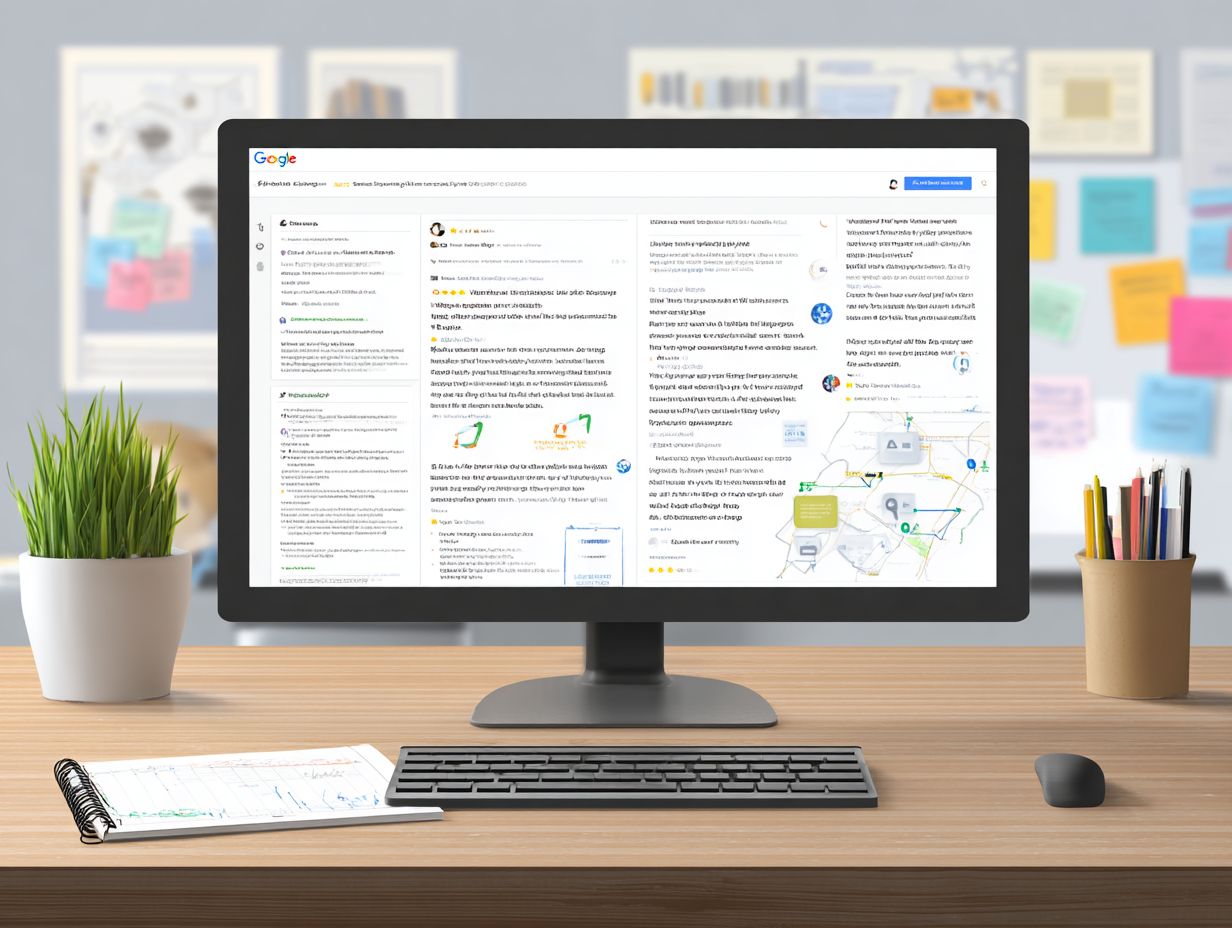
Shortened links are not only more visually appealing, but they are also easier to share, which can lead to higher click-through rates, particularly in marketing campaigns. Research indicates that tweets containing shortened links receive 34% more clicks compared to those with full URLs. This is especially important on social media platforms where character limits can restrict communication.
Tools like Bitly and TinyURL serve the dual purpose of condensing links while also providing valuable analytics tracking to monitor engagement. For instance, with Bitly, one can monitor how many times a link has been clicked and identify the sources of those clicks.
These insights are instrumental in optimizing content sharing strategies, ultimately ensuring better performance in future campaigns and enhancing brand advocacy. Given the increasing prevalence of mobile users, shorter links that seamlessly fit into messages can greatly enhance the user experience and engagement.
Using URL Shortening Tools
URL shortening tools such as Bitly and TinyURL provide a range of free and premium features designed to meet various business needs, thereby enhancing link management strategies.
Selecting the appropriate tool hinges on your specific requirements and budget. Below is a comparison of three popular URL shorteners:
| Tool Name | Price | Key Features | Best For |
|---|---|---|---|
| Bitly | Free & Paid Plans | Custom links, Analytics, Branding | Businesses needing analytics |
| TinyURL | Free | Simple shortening, Bookmarking | Personal use or casual sharing |
| Rebrandly | From $29/mo | Custom domains, Advanced tracking | Companies focusing on brand visibility |
For optimal usage, it is advisable to track clicks on each shortened URL using Bitly’s analytics tool, as this can provide valuable insights that inform future marketing strategies.
Tracking Your Review Link Performance
Tracking the performance of your Google Business Profile review links is crucial for gaining insights into customer engagement and enhancing your review generation strategies.
By closely monitoring these links, you can better understand how customers interact with your business and make informed decisions to optimize your approach.
Setting Up Tracking Parameters
Utilizing UTM codes to establish tracking parameters enables individuals to gain valuable insights into the effectiveness of their review link campaigns through Google Analytics and improve their marketing funnel.
To create UTM codes, one can use Google’s Campaign URL Builder. Begin by entering your website URL, then proceed to fill in parameters such as ‘utm_source’ (for instance, ‘newsletter’), ‘utm_medium’ (like ’email’), and ‘utm_campaign’ (such as ‘spring_sale’).
For example, a completed URL may appear as follows: www.example.com/?utm_source=newsletter&utm_medium=email&utm_campaign=spring_sale.
Following this, it is important to monitor the performance in Google Analytics by navigating to Acquisition > Campaigns. This will allow you to observe traffic and conversions generated from your specific links, providing clarity on which channels most effectively drive engagement.
Analyzing Review Link Data
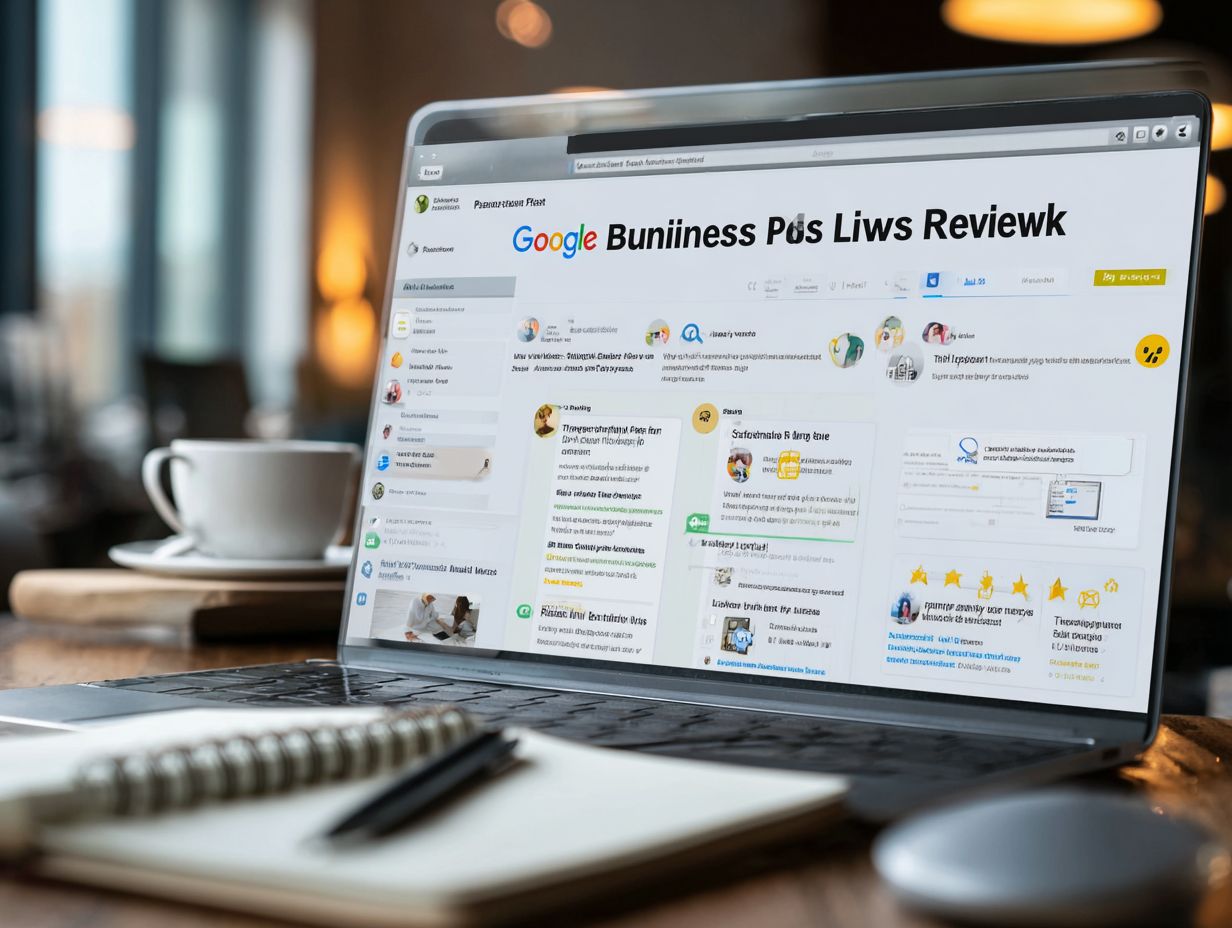
Analyzing the data from your review link tracking offers valuable insights into customer behavior and the effectiveness of your outreach efforts. To begin, take a close look at metrics such as click rates and user demographics in Google Analytics.
For instance, if you observe a high click rate but low conversion, it may be worthwhile to adjust your call-to-action or the content on your landing page.
Utilizing segmentation can help you identify which demographics engage most effectively, allowing you to tailor your messaging accordingly. Additionally, incorporating UTM parameters will enable you to track specific campaigns and determine which channels generate the highest engagement.
It is important to regularly review this data, establishing benchmarks for improvement, and adapting your strategy based on what resonates with your audience.
Best Practices for Sharing Your Review Link
Implementing best practices for sharing your review link can significantly enhance the likelihood of receiving customer feedback and improving your online reputation.
To maximize engagement, it is advisable to carefully consider the timing of your shares. For example, posting links during peak hours when your audience is most active, such as early evenings or weekends, can be quite effective.
Additionally, personalizing your requests by addressing customers by name and referencing their recent purchases can foster a stronger connection.
It is also beneficial to utilize multiple channels for sharing your review link. This may include:
- Sending follow-up emails
- Sharing on social media
- Including links in receipts or packaging
Moreover, tools like Mailchimp can automate your email campaigns, while Hootsuite can help schedule social media posts, ensuring that your review link reaches customers through various touchpoints.
Frequently Asked Questions
1. How do I create a Google Business Profile Review Link?
Creating a Google Business Profile Review Link is easy and enhances your digital marketing efforts. Simply go to your business profile on Google and click on the “Share” button. From there, select the option to create a review link.
2. Can I customize the review link for my Google Business Profile?
Yes, you can customize your Google Business Profile Review Link by adding a unique identifier at the end of the link. This can help you track where the reviews are coming from.
3. How do I shorten my Google Business Profile Review Link?
You can use a URL shortener tool to shorten your Google Business Profile Review Link. Simply copy and paste the link into the tool and it will generate a shorter, more manageable link for you.
4. Is there a way to track the performance of my Google Business Profile Review Link?
Yes, by adding a unique identifier to the end of your review link, you can track the performance of the link using tools like Google Analytics and improve your business insights. This will give you insights into how many people are clicking on the link and leaving reviews for your business.
5. Can I use the review link on any platform?
Yes, you can use the Google Business Profile Review Link on any platform, including social media, email, or your website. This makes it easy for customers to leave reviews for your business wherever they are.
6. Why is it important to track my Google Business Profile Review Link?
Tracking your review link can give you valuable insights into customer satisfaction and help you improve your business. It also allows you to see which platforms are generating the most reviews for your business.